How to Integrate Cloud with Salesforce MCP: A Practical Guide
Salesforce holds the data that runs your business: accounts, contacts, opportunities, cases, and the activity history that ties them together. Your cloud stack — storage buckets, data warehouses, serverless functions, and increasingly AI assistants — holds the compute and intelligence. The trick has always been getting the two to talk to each other cleanly and securely. The Model Context Protocol (MCP) is changing how that connection is built, and this guide walks you through it from first principles to a working integration.
What is Salesforce MCP, in plain English?
The Model Context Protocol is an open standard that lets AI applications and cloud services connect to data sources through a single, consistent interface. Instead of writing a bespoke integration for every tool that needs to read or write Salesforce data, you run an MCP server that exposes Salesforce as a set of well-defined tools and resources. Any MCP-compatible client — an AI assistant, an automation platform, or your own cloud application — can then connect to that server and work with Salesforce in a structured, permissioned way.
Think of MCP as a universal adapter. Before, every cloud-to-Salesforce connection was a custom cable. With MCP, you build one port, and everything that speaks the protocol can plug in.
Why connect your cloud to Salesforce through MCP?
A few benefits stand out for teams evaluating this approach:
- One integration, many consumers. Expose Salesforce once and reuse it across AI agents, dashboards, and back-end services.
- Governed access. The MCP server enforces which objects, fields, and actions are available, so you control exactly what the cloud layer can touch.
- Less brittle code. Tools are described in a standard schema, so clients adapt automatically when you add a new capability.
- AI-ready by design. Large language models can call MCP tools directly, making it straightforward to build assistants that answer questions or take actions on live CRM data.
Part 1: A beginner-friendly walkthrough
If you have never set up an integration like this, here is the high-level path. You do not need to write much code to get a first connection working.
Step 1 — Prepare your Salesforce org
Log in to Salesforce and create a Connected App (Setup → App Manager → New Connected App). Enable OAuth settings, choose the scopes you need (typically api and refresh_token), and note the consumer key and secret. This is what allows an outside service to authenticate securely.
Step 2 — Choose where the MCP server will run
The MCP server is a small service that sits between your cloud and Salesforce. You can run it on a serverless function, a container, or a small virtual machine in your cloud provider of choice. Wherever it runs, it needs outbound access to Salesforce and a way to receive requests from your MCP client.
Step 3 — Connect and test
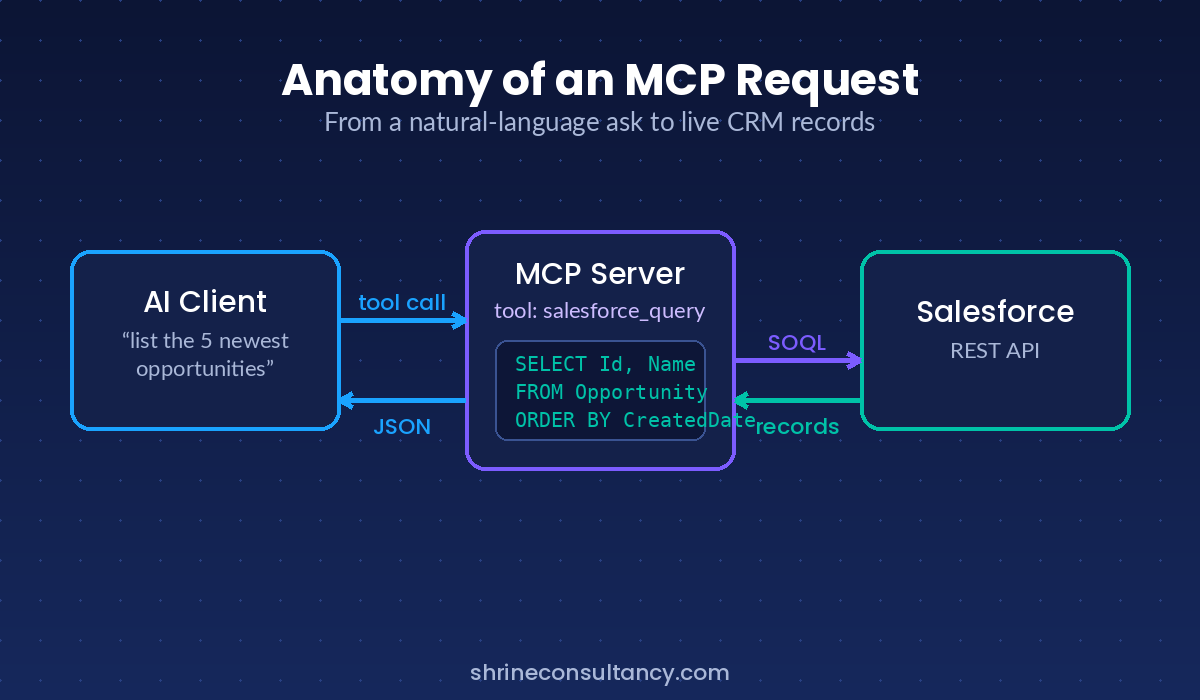
Point your MCP client at the server, authenticate, and try a simple read — for example, “list the five most recent opportunities.” Once that round-trip works, you have a live, governed bridge between your cloud and Salesforce.
Part 2: A technical deep-dive
For developers ready to build the integration properly, here is how the pieces fit together.
Architecture overview
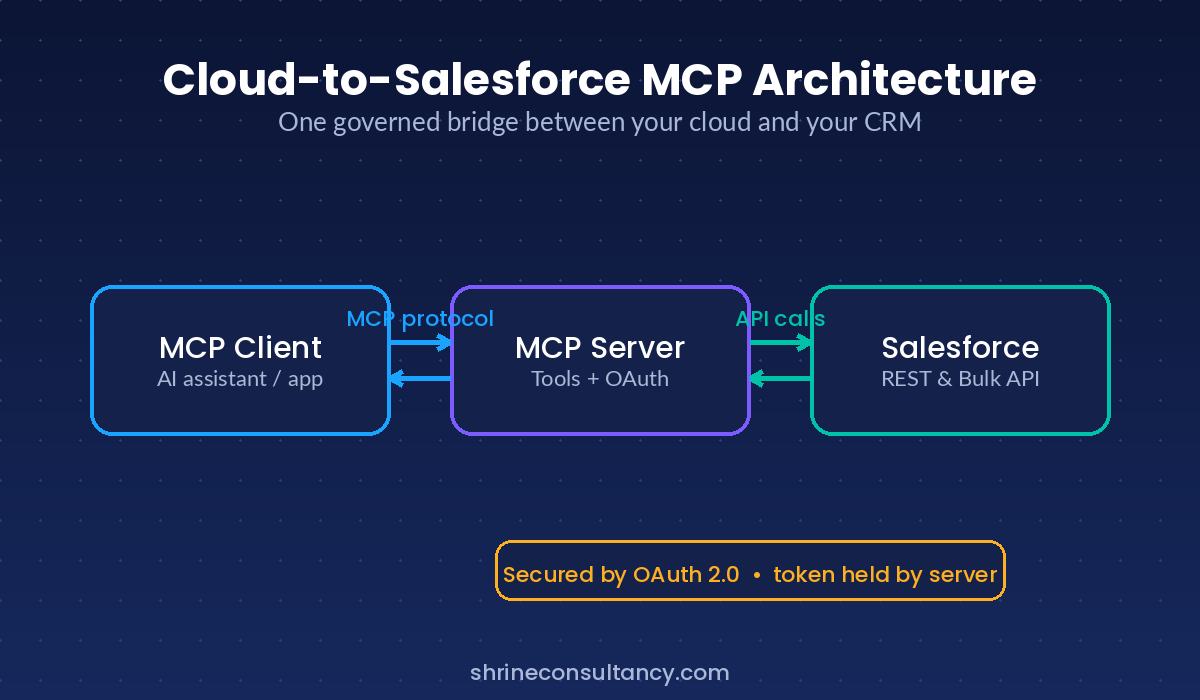
A typical deployment has three layers. The MCP client (an AI assistant or your application) sends requests over the protocol. The MCP server translates those requests into Salesforce API calls and shapes the responses. Salesforce itself exposes the REST and Bulk APIs that the server uses to read and write records. Authentication flows through OAuth 2.0, and the server holds the refresh token so the client never sees raw Salesforce credentials.
Authentication with OAuth 2.0
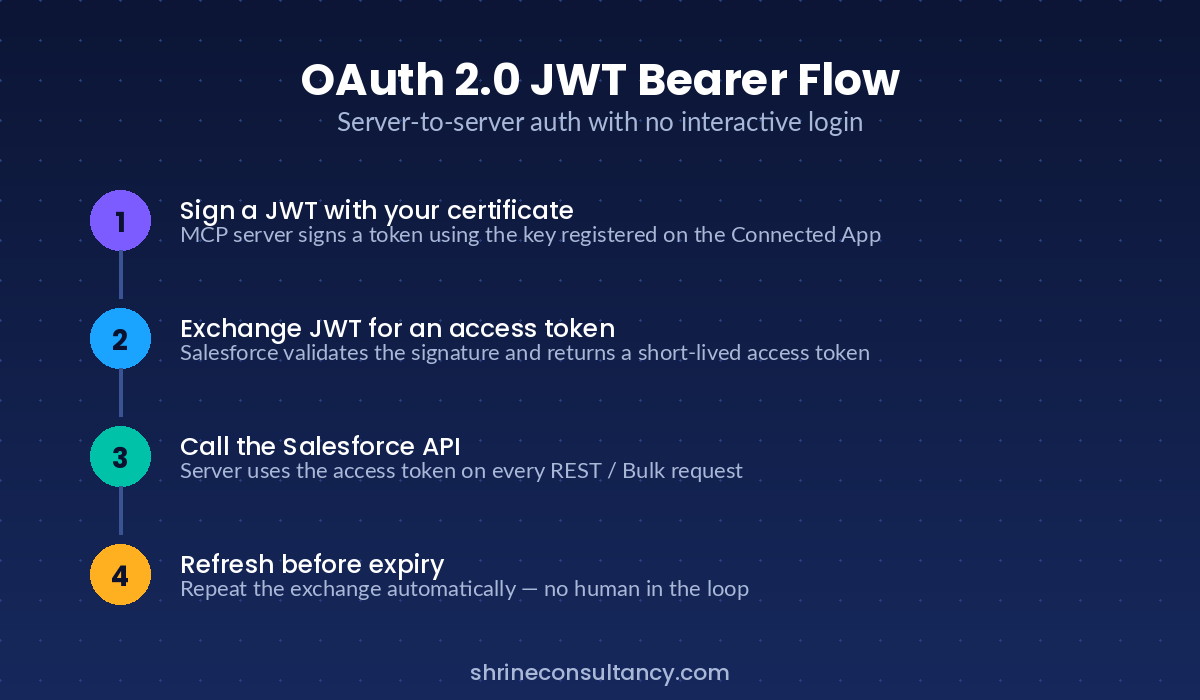
Use the OAuth 2.0 web server or JWT bearer flow for server-to-server connections. The JWT flow is well suited to MCP servers running in the cloud because it avoids interactive login: you sign a token with a certificate registered on your Connected App, exchange it for an access token, and refresh as needed. Store the signing key in your cloud provider’s secret manager — never in source control.
Defining tools on the MCP server
Each capability you want to expose becomes an MCP tool with a clear input schema. A practical starter set might include a query tool that runs SOQL, a record-fetch tool that returns a single object by ID, and a create/update tool guarded by validation. Keep tool descriptions specific so that an AI client can pick the right one without guessing.
// Example: a minimal SOQL query tool (pseudocode)
server.tool("salesforce_query", {
  input: { soql: "string" },
  handler: async ({ soql }) => {
    const res = await sf.query(soql);   // REST API call
    return res.records;
  }
});
Respecting limits and governance
Salesforce enforces API request limits, so cache where you can and use the Bulk API for large data volumes. Mirror Salesforce’s own permission model in the server: only expose objects and fields the integration genuinely needs, and log every write. This keeps the cloud layer powerful but accountable.
Deploying to production
Containerize the server, run it behind your cloud provider’s private networking, and put authentication in front of the MCP endpoint itself. Add monitoring on latency and API consumption, and set alerts before you approach Salesforce’s daily limits. With that in place, you have a resilient, observable bridge that any MCP-aware tool can rely on.
Common pitfalls to avoid
- Over-scoping access. Granting broad object and field access “to be safe” is the most common security mistake. Start narrow.
- Ignoring API limits. Unbatched writes can exhaust your daily quota quickly. Use Bulk and cache aggressively.
- Storing secrets in code. Always use a managed secret store for keys and tokens.
- Skipping validation. Validate inputs on create and update tools so a malformed request never corrupts CRM data.
Final thoughts
Integrating your cloud with Salesforce through MCP turns a tangle of one-off connectors into a single, governed, AI-ready interface. Beginners can stand up a working read-only bridge in an afternoon, and engineering teams can grow it into a production service with proper authentication, limits, and monitoring. As more tools adopt the protocol, the integration you build today keeps paying off — every new MCP client can connect without another custom build.
If your team is planning a Salesforce and cloud integration and wants help designing it the right way, Shrine Consultancy can help you scope, build, and secure it.